
1. Please ensure that the PLX-Benchtop has been unboxed and set up.
2. Install CORSICA on your PC.
An active license file must be present on the computer for the software to install. If you do not have this, please contact support@plastometrex.com.
3. Set up your PC by following these instructions.
4. After finishing Steps 2-3 and launching CORSICA, the boot sequence will be initiated. You should see this window on the computer screen:
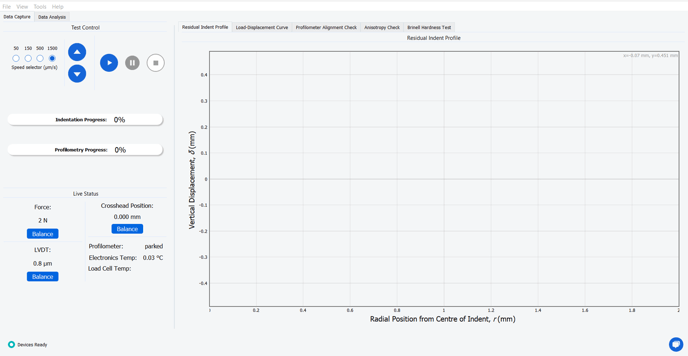
When the booting sequence has been completed, the PLX-Benchtop LED status lights will change from flashing blue to steady blue and the Devices Ready icon will appear in bottom left corner.
The PLX-Benchtop is now ready to use!